Squarespace has a powerful built-in feature called the URL source, designed to link a blog post or event to an external original source. It’s perfect for affiliate marketers, event organizers using external booking platforms (like Eventbrite), or news curators.
However, the native implementation is often incomplete. While you can set a Source URL, Squarespace frequently forces visitors to click through to the item collection page before they can find the actual external link.
Today, we’re going to fix that. In this guide, I’ll show you how to set up Source URLs for every collection type and how to use the Source URL Helper plugin to ensure every click—including thumbnails and buttons—leads exactly where it should.
Setting up Source URLs for Blogs
By default, Squarespace only lets you link the Titre of a blog post to a Source URL, In summary blocks, both the post title and featured image link to the source URL.
The Setup:
From your Home Menu, go to Pages and select your Blog.
Click the Paramètres (gear icon) for a specific post.
Go to the Options onglet.
Paste your external link into the URL source field.
Toggle the Lier le titre de la publication à l'URL source switch to ON.
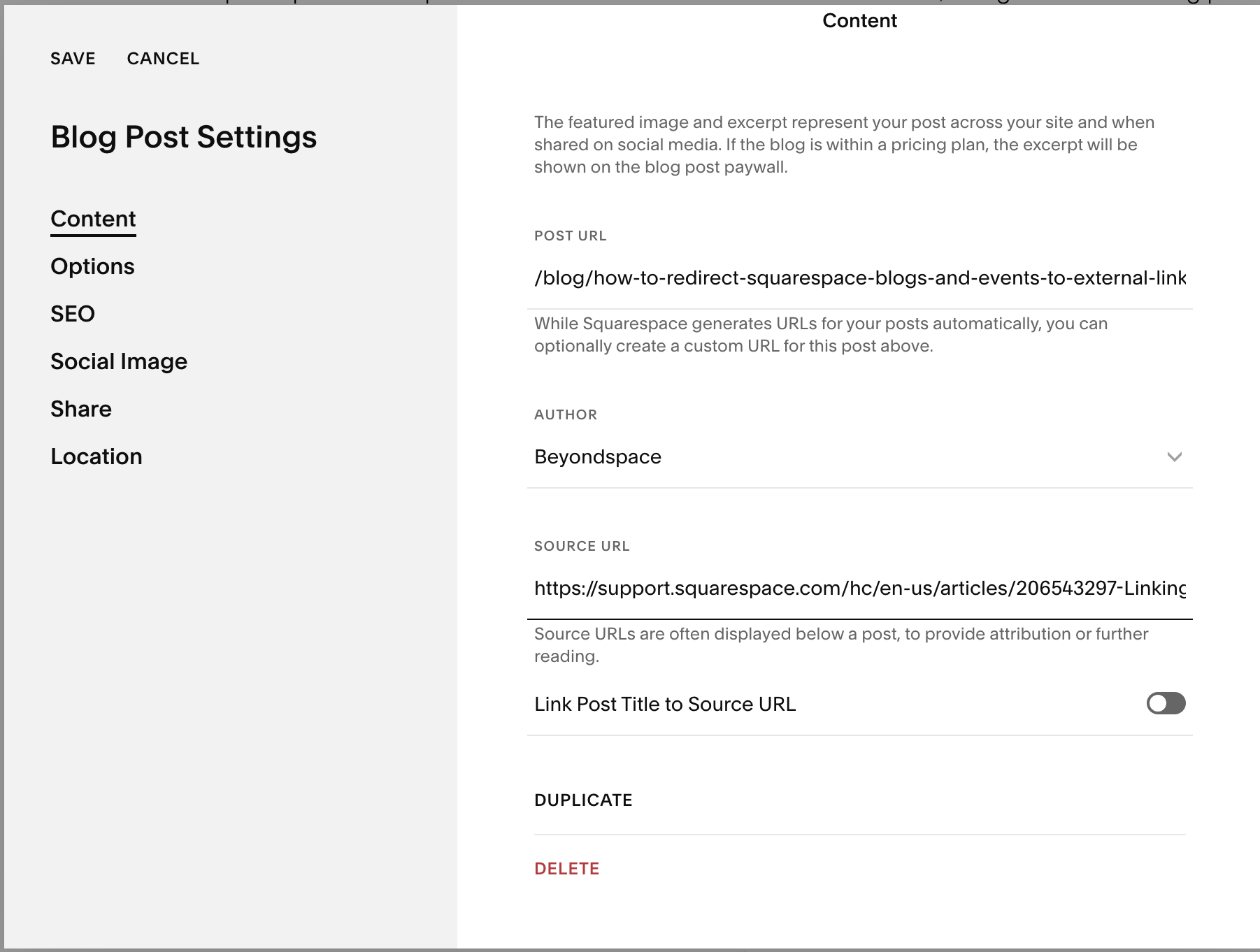
Blog Source URL
The Limitation:
Even with this toggled on, Squarespace only redirects the title (plus featured image if you are using a Summary block). If a visitor clicks the "Read More" button in a Summary Block, they are still sent to the blog post item page.
Setting up Source URLs for Events
Events are even more restricted. While they have a Source URL field, Squarespace doesn't provide a toggle to link the title or thumbnail to it.
The Setup:
Ouvrez votre Events page settings.
Click into an individual Event.
Accédez à Options.
Scroll down to the URL source field and paste your booking or external link.
The Limitation:
Natively, this link only appears as a small text snippet in the event's description. On your main Event List or Calendar Block, clicking the event still takes users to the internal event page rather than your external booking site.
Automating Redirects with Source URL Helper
This is where the Assistant d'URL source plugin comes in. It "scans" your site for these hidden Source URLs and automatically rewrites every possible link (Title, Thumbnail, Button, or "Read More") to point to that external destination.
Core Features:
Universal Link Replacement: Automatically finds and replaces links on collection items (Title, Thumbnail, and Button) across your entire site.
Multi-Collection Support: Works seamlessly on both Events et Blogs.
Calendar Block Integration: One of its most unique features—it replaces internal links within Calendar Block flyouts title, including the flyout title and thumbnail.
Force Source URL to open in new tab: You can change how the source url is opened
The plugin is available for purchase via Assistant d'URL source . Once activated, you can manage everything visually using Contrôle au sol.
We want you to feel confident in the solution, so a risk-free trial is available. You can activate the trial with a single click directly inside your Contrôle au sol dashboard
How to configure with Ground Control:
If you are using Contrôle au sol, setting this up takes seconds and requires zero coding:
Enter your website dashboard and look for the Ground Control icon on the top left.
Trouvez le Assistant d'URL source in your plugin list.
Use the visual toggles to decide exactly what gets redirected:
Event list titles, thumbnails, buttons.
Event summary block titles, thumbnails, buttons.
Calendar block flyouts title, event titles and thumbnails
Video below shows how to link event flyout link item to its Source URL on a calendar block
Comparison: Native vs. Plugin Support
Collection Type | Link element | Native Squarespace | Source URL helper | Notes |
|---|---|---|---|---|
Blog List | Titre | ✅ | ✅ | |
- | Miniature | ❌ | ✅ | |
- | Read more | ❌ | ✅ | - |
Event List | Titre | ❌ | ✅ | |
- | Miniature | ❌ | ✅ | - |
- | Read more | ❌ | ✅ | - |
Blog Summary Block | Titre | ✅ | ✅ | |
- | Miniature | ✅ | ✅ | - |
- | Read more | ❌ | ✅ | |
Event Summary Block | Titre | ❌ | ✅ | |
- | Miniature | ❌ | ✅ | |
- | Read more | ❌ | ✅ | |
Calendar Block | Flyout/Title 📅 | ❌ | ✅ | |
All links | Open in New tab | ❌ | ✅ |
Why This Matters for User Experience
Think about a Calendar Block. If you are hosting a workshop and using an external booking link, your visitors expect that clicking the event on the calendar will take them directly to the "Book Now" page.
Without this helper, they have to click the calendar, then click a "Read More" link, then find a small "Source" link in the description. By then, you've likely lost the lead. By using the Source URL Helper, you cut that journey down to a single click.