
Squarespace's Portfolio page is useful for showcasing creative work, but it lacks a built-in draft mode, which can be frustrating when you want to hide unfinished projects from public view while still working on them
Solutions to Set Portfolio projects as Drafts
You can activate Draftify Portfolio using Ground Control to enable draft mode for your projects
Check the video for step-by-step intructions
Install Ground Control: Install the Contrôle au sol plugin to activate the Draftify Portfolio feature
Create and Manage Portfolio Items:
Create a new Portfolio project as usual
Click the three-dot menu icon next to your project in the Portfolio manager
Use the new options:
Définir comme brouillon: Hides the Portfolio project from public view
Définir comme publié: Makes the project live and visible
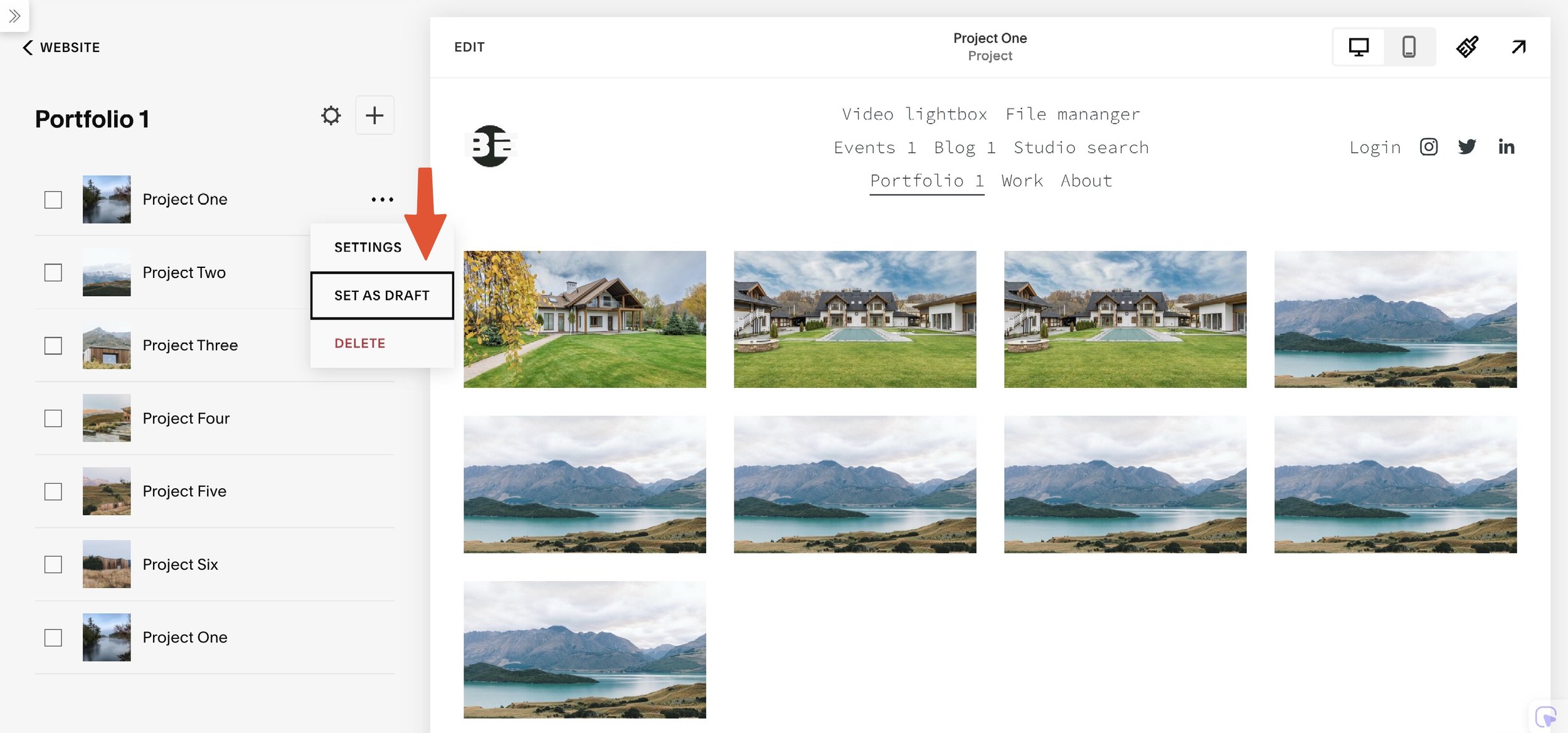
Set Portfolio project to draft
Projets de portfolio : Brouillon vs Publié
| Feature | Mode brouillon | Mode publié |
|---|---|---|
| Visibility | Portfolio items are hidden from visitors. | Projects are fully visible on your site. |
| Appearance | Draft items won’t appear in Portfolio collection pages, including Grid or Hover layouts. | Accessible through their URLs and appear in all Portfolio collection displays. |
| Pagination | Draft items will be hidden from Portfolio page’s pagination; next published projects will be displayed instead. | |
| URL Access | URLs for draft items will return a 404 page if accessed. |
Redirecting 404 Pages for Drafted Items
To maintain a seamless user experience, redirect the URLs of drafted projects to your main Portfolio page. Here’s how:
Accédez à Paramètres > Outils pour développeurs > Mappages d'URL in Squarespace
Add the following line, replacing
votre-portfoliowith your Portfolio’s actual slug
/your-portfolio/project-slug -> /your-portfolio 302
This ensures visitors attempting to access a drafted project are redirected to the main Portfolio page instead of encountering a 404 error, especially useful when you’re editing an indexed project
More info about Portfolio
How to Add a Portfolio Page
Ouvrez le Pages panel, then click + next to the navigation section where you want to add the page
In the menu, click Portfolio and choose a layout. You can change this later
Enter a page title and press
EnterClick Modifier, then click the pencil icon to style the section
Click + to add a project or click an existing project, then click Edit to add your own content
Add and edit more projects until your portfolio page is complete
It's not possible to add blocks to the portfolio section of a portfolio page, but you can add block sections above or below the portfolio section
Limitations of Portfolio Pages in Squarespace
You can only have 60 subpages per portfolio page
You can not move Portfolio projects between Portfolio pages
You will need special code to hide portfolio items in "draft" mode since there is no built-in option

Maintenant que Squarespace prend en charge nativement les brouillons de portfolio, notre fonctionnalité "Draftify Portfolio" est officiellement arrêtée. Nous recommandons à tous les utilisateurs de passer à la fonctionnalité intégrée de Squarespace.
Découvrez comment dans leur guide officiel : Guide des pages de portfolio